Archive.org is one of my favourite sites on the whole wide interwibble. It’s a massive storage facility – an archive, if you will – for digitised media of all kinds. Books, magazines, music, video – it’s all on there and completely free of charge.

Trouble is, actually getting it isn’t always easy.

Don’t get me wrong: the Archive.org website is great. Clicking on a magazine from 1988 and being able to read it right there in my browser, with page-turning animations and all, is something special – but I want to be able to download the files, stick ‘em on my tablet and read them in the bath.

Thankfully, Archive.org is cognisant of this requirement: the site officially supports downloading in bulk using the excellent wget utility, but the list of instructions isn’t exactly straightforward. According to Archive.org, you need to use the advanced search function to return a list of identifiers in CSV format, then strip out a bunch of formatting and an excess line at the top, then feed the modified file to wget…

Wait, change the formatting of the file? Manually download the CSV through your web browser? Isn’t there a better way?

No, it turns out. Well, no it turned out at the time. Yes, now, because I’ve written one: archivedownload.sh. It’s a hacked-together shell script that chains a few useful GNU tools – wget, sed and tail primarily – and makes it possible to download an entire collection from Archive.org at the command line, no messin’.

All you need is the script – available on GitHub – and the name of the collection you want to download. For argument’s sake, let’s say I want a copy of every issue that Archive.org holds of Acorn Programs Magazine. First, I need the collection name: looking at an individual entry page, I see that’s “acorn-programs” – which I could probably have guessed, to be honest.

At my terminal – at which I’ve downloaded a copy of archivedownload.sh and made it executable – I need only issue the following command:

./archivedownload.sh acorn-programs

Voila: the script grabs the CSV identifier list from Archive.org’s advanced search, formats it in the way wget expects, and then tells wget to go off and download the PDF format files. Due to the way Archive.org is laid out, this takes a while: the CSV doesn’t contain the locations of the files, just their identifier, so wget has to spider its way around the site to find them. For the five issues of Acorn Programs – for which the script downloads ten PDF files, five featuring scanned images and five featuring OCRd reflowable text – wget will actually end up downloading nearly 200 files, most of which it discards. Wasteful, yes, but Archive.org seems to be happy doing it that way.

EDIT: Thanks to Archive.org’s Hank Bromley, the author of the original instructions for bulk downloads, the wget command is now a lot more efficient: instead of downloading 200 files for 10 PDFs, it now downloads 20 files. See this comment for details.

The script downloads the PDF format files by default; you can change this in line 18 to download a different format like ePub if you’d prefer. Just find the section that says “-A .pdf” and change it to “-A .epub” and re-run the script.

Just a few things to note: the script downloads the PDF files to the current directory, and if it finds any text-format PDFs – not all collections have them – moves them into a sub-directory called “text,” which it will create if it doesn’t already exist; also, it’s pretty indiscriminate in what it does, so make sure you run it in a folder that doesn’t have any existing PDFs if you don’t want weird things to happen. If you want the script to continue downloading even after you close your terminal, call it via screen as “screen /directoryname/archivedownload.sh collection-name” then CTRL-A and CTRL-D to detach the session from your controlling terminal. Oh, and if the script gets interrupted part-way through, delete the most recent PDF file – which will likely only be partially complete – and re-run the script: wget is set to no-clobber, so it won’t download any PDF files that have already been downloaded, which is handy if it fails towards the end of a large collection.

Enjoy!

68030

I had cause to need to mount a hard drive – actually, a Compact Flash card, but that’s beside the point – from an Amiga on my PC the other day. In theory, not a problem: Linux includes in-built support for Amiga FastFileSystem (AFFS) devices, so it should just be a case of identifying which of the three partitions I’m after and giving the mount command.

So, let’s fire up fdisk:

$ sudo fdisk -l
 Disk /dev/sdc: 4009 MB, 4009549824 bytes
 124 heads, 62 sectors/track, 1018 cylinders, total 7831152 sectors
 Units = sectors of 1 * 512 = 512 bytes
 Sector size (logical/physical): 512 bytes / 512 bytes
 I/O size (minimum/optimal): 512 bytes / 512 bytes
 Disk identifier: 0x00000000
Disk /dev/sdc doesn't contain a valid partition table

Huh. That’s odd – it certainly should. Other partitioning tools say the same thing – and the reason becomes clear: apparently, while Linux technically understands AFFS partitions, it doesn’t actually understand Amiga partition tables. At least, most packages don’t: thankfully, one package does. So, to the wonderful parted:

$ parted /dev/sdc
 WARNING: You are not superuser. Watch out for permissions.
 GNU Parted 2.3
 Using /dev/sdc
 Welcome to GNU Parted! Type 'help' to view a list of commands.
 (parted) u
 Unit? [compact]? b
 (parted) p
 Pralloc = 0, Reserved = 2, blocksize = 1, root block at 62832
 Pralloc = 0, Reserved = 2, blocksize = 1, root block at 2112896
 Pralloc = 0, Reserved = 2, blocksize = 1, root block at 5965912
 Model: Generic STORAGE DEVICE (scsi)
 Disk /dev/sdc: 4009549824B
 Sector size (logical/physical): 512B/512B
 Partition Table: amiga
Number Start End Size File system Name Flags
 1 278528B 64061439B 63782912B affs1 DH0 boot
 2 64061440B 2099544063B 2035482624B affs1 DH1
 3 2099544064B 4009549823B 1910005760B affs1 DH2
(parted) quit

You may notice I told parted to switch unit type from the default – Compact – to Bytes. There’s a reason for that: because the kernel can’t see the partition table, it hasn’t created the usual sdc1, sdc2 and sdc3 devices under /dev – meaning I can’t tell mount where to look for the third partition, which is the one I’m after. A problem – but one that can be resolved by giving mount an offset option, taken from the ‘Start’ column of parted’s output:

$ sudo mkdir /media/AmigaMount
$ sudo mount -t affs -o offset=2099544064 /dev/sdc /media/AmigaMount
 mount: wrong fs type, bad option, bad superblock on /dev/sdc,
 missing codepage or helper program, or other error
 In some cases useful info is found in syslog - try
 dmesg | tail or so

Huh? What does dmesg have to say about this?

$ dmesg | tail -1
 [83740.730900] AFFS: No valid root block on device /dev/sdc

Okay, so that didn’t work. Now it’s time for the brute-force option: if mount’s offset command won’t work, let’s try setting up a loop device on the partition’s offset:

$ sudo losetup -o 2099544064 /dev/loop1 /dev/sdc
$ sudo mount -t affs /dev/loop1 /media/AmigaMount
$ ls /media/AmigaMount
 A500_A600_EtoZGames Disk.info Favorite Games.info
 A500_A600_EtoZGames.info Favorite Games

Bingo! At this point, you can read or write any file you like to the partition. To mount a different partition on the disk, simply give losetup the offset of that partition as reported by parted – remembering to tell parted to switch to bytes as its unit.

Having finished sticking my files on the drive, it’s time to tidy up and unmount:

$ sync
$ sudo umount /media/AmigaMount

Eject the drive, stick it back in the Amiga and lo: my files are there.

An alternative method to the above is to use an Amiga emulator on your PC: UAE, for example, can mount a real Amiga drive. This way’s easier, though – at least, if you don’t have to go through the troubleshooting steps that brought me to my understanding of the flaw.

To recap: insert Amiga drive, use parted in bytes mode to get partition offset, setup loop device at that offset, mount loop device. Not as simple as it should be, but hey: it works. This also works, interestingly enough, on disk images: create a backup of your Amiga drive with dd and you can then mount partitions directly from the backup rather than the real drive.

ExifTools

I upgraded my Galaxy SII to a custom version of Android 4.0.4 Ice Cream Sandwich the other night, and it’s been brilliant – except for one little bug. If I go into the Gallery app, images on my microSD are in a semi-random order. If I tell Android to group by time, the problem becomes apparent: large numbers of images, always in contiguous blocks, are thought to have been taken between 1992 and 2018. I didn’t have an Android phone in 1992, and 2018 hasn’t happened yet – clearly, it’s a bug.

A quick search turned up this Google Code issue, which matches what I’m seeing exactly: GPS data is sometimes corrupted as it writes to the image. Worryingly, the bug dates back to at least Android 2.3 Gingerbread – which I can confirm, as the images in question were taken while the Galaxy SII was still running 2.3.4 – but Google promises a fix is incoming.

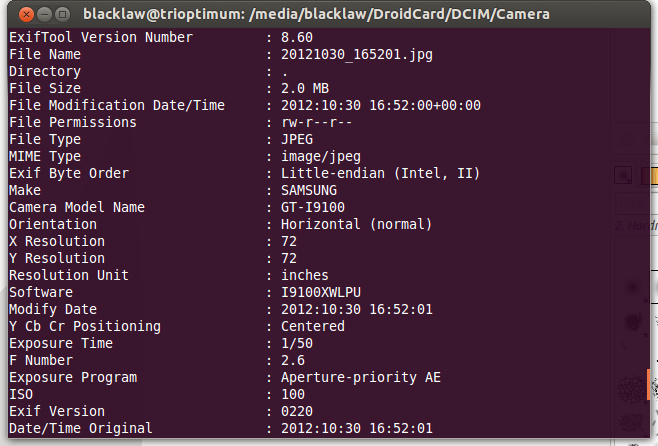
Here’s an example of the problem. The GPS Date tag from a non-corrupt image reads 2012:10:30 – year, month, day with a colon delimiter. The GPS Date tag from a corrupt image reads 0112:09:26 – a clearly invalid date which is confusing the heck out of the Gallery app. (You can check this out yourself with the command exiftool -gps:GPSDateStamp filename.jpg)

But why have I only just spotted the problem? Simple: the ICS – and Jelly Bean – Gallery app has changed its behaviour from previous versions. Where the old Gingerbread Gallery used to use the file modified date to sort the images, the ICS and newer Gallery uses the GPS Date Stamp tag from the EXIF data – the very tag that is being corrupted by the bug. Why it does that, I have no idea: there are numerous other EXIF tags which have the right date stamp and would be more appropriate for sorting, such as the Date Time (Original) tag. Perhaps that’s Google’s fix: modify the Gallery to sort on a different tag.

A pending fix doesn’t solve the fact that I’ve got a few hundred images with corrupt EXIF information, though. Switching to a third-party image viewer, like QuickPic, orders the images correctly, but that’s a workaround at best. So, I’ve written a quick tool to correct the invalid EXIF data on all my images.

It’s a bash shell script, and simple enough: it calls the ExifTool Perl package to copy the date from the Date Time (Original) tag over the top of the GPS Date Stamp tag. The result: the invalid tag goes away, Android knows what year the image was taken, and it orders the gallery correctly. It’s a hack: it overwrites the GPS Date Stamp of all JPG images in the current directory, regardless of whether the year makes sense or not, but it fixes the problem – albeit slowly.

You can find the script on GitHub. Hope it helps!

When you’ve corrected your images, you’ll need to go into Settings and Applications on your Android phone. Choose ‘All,’ find the Gallery app and tap it to get into the menu. Hit ‘Force Stop’ and then ‘Clear Data’ – don’t worry, you won’t lose any images, this just deletes the file database and thumbnail cache. If you don’t, the Gallery will still use the old ordering data and you’ll still have a problem. When that’s done, load the Gallery, let it find your files, and enjoy having all your images in the right order.

Oh, and one other thing: take a backup of your images before running the script. Although it worked fine for me, I can’t guarantee it won’t corrupt images further – and I don’t want to be responsible for you losing your precious photos.

IMGP7498

Helping out a friend with a picture or two of the Astec UM1233 RF Modulator’s inner workings. If you’re curious, it’s a device which was incredibly popular in the 80s and 90s in home computers, and takes video and audio as an input and turns them into either VHF or UHF (depending on country) radiofrequency signals – the same signals as analogue TV tuners expect to receive. If you crack open a ZX80, ZX81, Spectrum of almost any model, Commodore 64, ORIC, Newbrain, Dragon – almost any 80s microcomputer aimed at the home market – you’ll probably find one of these.

The Burnduino Kit
The Burnduino Kit

The Burnduino Kit

The Burnduino Shield is, as the name suggests, an add-on ‘shield’ for the Arduino microcontroller and compatibles. It’s designed to make programming an ATmega328 DIP-package microcontroller easier, and turns the Arduino into a remarkably efficient AVR programmer. Features include:

  • 28-pin universal ZIF (zero insertion force) socket, meaning no bent pins and fast chip change
  • Supports uploading of 16MHz external crystal and 8MHz internal oscillator Arduino bootloaders onto bare ATmega microcontrollers
  • Fully supported within the Arduino IDE software
  • Allows uploading of bootloaders and sketches from a single shield
  • Mode select jumpers mean no rewiring – ever
  • Saves money: buy unprogrammed ATmega328 chips and burn the bootloader yourself

The Burnduino is provided as a kit, which contains the printed circuit board, a high-quality 28-pin locking ZIF socket made by 3M, a 16MHz crystal with two 22pF decoupling capacitors, a 10KOhm pull-up resistor for the reset line, male 2.54mm headers and three 2.54mm jumpers for the mode select pins. All components are through-hole and easy to solder, even for a novice.

The Burnduino’s mode select jumpers allow a single shield to perform two tasks: when in ‘BTLDR’ mode, with the RX and TX jumpers open, the Burnduino works with an Arduino and the Arduino-as-ISP sketch to burn new bootloaders onto blank or pre-used ATmega microcontrollers. Close the RX and TX jumpers and move the mode select jumper to ‘SKETCH’ and the Burnduino allows the Arduino IDE to upload sketches to bootloader-equipped ATmegas.

Bootloader Mode

  1. Upload the ‘ArduinoISP’ sketch (File – Examples) from the Arduino IDE to your Arduino or compatible board.
  2. Connect the Burnduino shield.
  3. Set the lower-left Mode Select jumper to BTLDR, shorting the middle and top pins.
  4. Remove the jumpers from the RX and TX pins.
  5. Insert your ATmega microcontroller into the ZIF socket
  6. Select your chosen board type from the Tools – Board menu in the Arduino IDE.
  7. Upload the bootloader using Tools – Burn Bootloader – w/ Arduino as ISP.
  8. To program another ATmega, simply replace the chip in the socket and burn the bootloader again.

Sketch Mode

  1. Remove the ATmega chip from your Arduino board and put it somewhere safe.
  2. Connect the Burnduino shield.
  3. Set the lower-left Mode Select jumper to SKETCH, shorting the middle and bottom pins.
  4. Short the RX and TX pins with the jumpers provided.
  5. Select the bootloader type from the Tools – Board menu in the Arduino IDE.
  6. Insert your bootloader-equipped ATmega chip into the ZIF socket.
  7. Load your sketch into the Arduino IDE and hit the upload button.
  8. To upload the sketch to a new chip, simply replace the chip in the ZIF socket and hit the upload button again.

If you want to take advantage of the ATmega’s internal oscillator, which means your finished design can ditch the 16MHz crystal and decoupling capacitors to save money and space, you’ll need to follow the ‘Minimal Circuit’ instructions from the Arduino to Breadboard article to add a new board definition to the Arduino IDE. If you need to upload bootloaders to ATmega328-PU chips – rather than the more common ATmega328P-PU – follow these instructions.

NOTE: The Burnduino uses the ArduinoISP sketch to upload a bootloader to the chip in the ZIF socket. This sketch, at present, does not support the new Arduino Uno, which uses different USB circuitry. If you want to use the Burnduino as an ISP, you’ll need to have an Arduino Duemilanove or third-party compatible with FTDI circuitry instead.

Arduino Burner PCB

Arduino Burner PCBContinuing my creation of circuits that save me a little time, I’ve developed a shield which turns an Arduino Duemilanove (or compatible) into an EPROM burner for ATMega328 chips. Imaginative as ever, I call it the “Arduino Burner.”

While working on the Standalone Sleepduino, I had cause to burn a custom bootloader to an ATMega328 chip in order to convince it to use its internal 8MHz oscillator instead of an external 16MHz crystal. With an Arduino Duemilanove, that’s not too difficult: follow the instructions from the Arduino To Breadboard article and you’re away.

It does, however, require a bit of time to set up the various wires; then more time is required moving the wires to upload a sketch to the newly-created Arduino-compatible microcontroller. Not much time, to be fair, but time nevertheless. So, the Arduino Burner was born.

The Arduino Burner is a simple shield based on the wiring from the Arduino To Breadboard article. It features room for a 16MHz crystal and decoupling capacitors, although these can be safely ignored if you’re programming an ATMega using the 8MHz breadboard bootloader. Installing them does, however, mean that you have the choice of flashing either bootloader; leaving the holes unpopulated means that you’ll be limited to the 8MHz version only. There’s also a 10K pullup resistor for the reset line, although again this is a ‘nice to have’ that can be ignored.

Usage is simple: stick a raw ATMega328 into the zero insertion force (ZIF) socket in the middle of the shield, set J1 to ‘BTLDR’ and open the RX and TX jumpers and you can burn a bootloader straight from the Arduino IDE. When your bootloader is installed, you can close the RX and TX jumpers and switch J1 to ‘SKETCH’ to upload a sketch – but remember to remove the Arduino’s own ATMega, or you’ll be uploading the sketch to that instead of your new chip!

The ZIF socket means that the legs of the ATMega328 are protected from damage – a key point if you’re burning large quantities of chips. It does, however, increase the cost of the shield quite significantly: a single 28W DIP socket is around 20p, while the particular low-profile ZIF chosen for this shield is around £8 – although this does drop as you buy quantities.

If you’re only creating one-off standalone projects, the Arduino Burner shield is overkill. If you’re doing large quantities and don’t fancy shelling out for a real AVR, however, it can be a serious time-saver.

I’ll be getting a prototype made up towards the end of the month, so pop back then if you want to see the shield in action.

Standalone Sleepduino Working

Just a quick update on the Sleepduino project: the PCBs for the Sleepduino Shield and Standalone Sleepduino arrived from the fab yesterday, and they work a treat.

Here’s a quick comparison between the Standalone Sleepduino and its breadboarded prototype:

Sleepduino Standalone Final/Prototype Comparison

As you can see, the Standalone Sleepduino is pretty compact, but still packs all the features of the original Arduino-powered version. In fact, it’s possible to take the (socketed) microcontroller out of the Sleepduino and upload a revised sketch, if you’ve got an ATtiny or similar or a spare Arduino to do the programming.

Just in case you doubt it works:

Standalone Sleepduino Working

At some point, I’ll be making a few tweaks to the design and then exporting some Gerbers for mass-production. Once I’ve got a costing for the PCB fabrication and parts – a 10K poteniometer, piezoelectric buzzer, three RGB LEDs, three buttons, nine 270-Ohm resistors and an ATMega-328 with socket – I’ll have a better idea of whether the project is worth pursuing.

Arduino Duemilanove Side View

Arduino Duemilanove Side ViewIn the course of the design for the Standalone Sleepduino, I needed to create a bare-bones breadboard that could run an Arduino sketch. I really mean bare bones, too: I didn’t even want to include the 16MHz crystal, as through-hole versions take up too much room and surface-mount versions are a pain (as I found when I got hold of a pair of Texas Instruments LaunchPads, but I digress.)

I snagged myself an ‘Arduino compatible component kit‘ from the lovely guys at Oomlout, which included all the parts I didn’t really need but wanted on hand just in case alongside the most important part of the kit: the ATMega328 microcontroller itself.

Sticking it in a breadboard, I followed the official instructions on how to burn an Arduino bootloader onto an ATMega328 so that it uses its internal 8MHz oscillator instead of an external crystal as its clock source.

At least, I tried to.

I spent about an hour wrestling with one major problem:

avrdude: Expected signature for ATMEGA328P is 1E 95 0F
Double check chip, or use -F to override this check.

Every single time I tried to program the 8MHz bootloader, avrdude told me to -F off. Eventually, I twigged what was going on: official Arduinos have an ATMega328P-PU chip, which you can see printed on top. In good light. If you squint a bit. My chip?

An ATMega328-PU.

One little letter, so much heartache. While the ATMega328P and ATMega328 microcontrollers are pretty much interchangeable, they have different signatures. The version of avrdude that ships with the Arduino IDE knows about ATMega328Ps, but not about ATMega328s. Hence my problem.

Thankfully, there’s a fix. To load an Arduino bootloader onto an ATMega328, open up avrdude.conf (found in /usr/share/arduino/hardware/tools/ on Linux boxes) and search for the string “0x1e 0×95 0x0F”. That’s the signature of an ATMega328P. Replace it with “0x1e 0×95 0×14″, which is the string of an ATMega328 and save the file. If you’re on Linux, you’ll need to be root to save the file. Restart the Arduino IDE, and you should be able to burn the bootloader without any errors.

When you’re done, remember to replace “0x1e 0×95 0×14″ with “0x1e 0×95 0x0F” again, or you’ll get a bunch of messages telling you that only assembler is supported…

UPDATE: While this all still works, compiling sketches for the thing is broken as of Arduino 1.0.0. To fix, you need to copy a file into a certain directory. On Linux, it’s a case of:

sudo cp /usr/share/arduino/hardware/arduino/variants/standard/pins_arduino.h /usr/share/arduino/hardware/arduino/cores/arduino/

That should fire things back into life.

Standalone Sleepduino PCB

Standalone Sleepduino PCBMy original concept to create the Sleepduino as an Arduino shield to aid with sleep via white-noise and night-lights – or as a convenient way of getting three RGB LEDs, three buttons and peizoelectric buzzer with adjustable volume into an Arduino – is good, but wouldn’t a stand-alone version be better?

Yes. Yes, it would.

As a result, my order with the fab now includes an original Sleepduino shield along with the new design: the Standalone Sleepduino. Measuring a mere 17.6cm², it’s half the size of the Sleepduino shield. It’s not just a reduced footprint, though: as the name suggests, the Standalone Sleepduino no longer requires an Arduino to operate, shaving about £22 off the cost of the device for those who don’t already have an Arduino or compatible hanging around.

How? By taking the chip at the heart of the Arduino, the ATMega328 microcontroller, and embedding it directly into the middle of the circuit board.

To keep the size down and reduce the number of components required, the design of the Standalone includes a few tweaks over a traditional standalone Arduino creation. First of all, the traditional 16MHz crystal and associated capacitors aren’t there: the Sleepduino doesn’t need an accurate clock to work, so I’m using the 8MHz oscillator built in to the ATMega328 instead. There’s also no sign of a 5V regulator: instead, a USB B socket provides connectivity to a PC USB port or USB-based charger, which already provides a regulated 5V feed.

The Standalone Sleepduino won’t be for everyone: while it’s technically possible to reprogram it in the same way as the newly-renamed Sleepduino Shield, it involves having an existing Arduino or AVR programmer and taking the microcontroller off the board. If you’re looking for something to hack, the Sleepduino Shield will still be the better option; that goes doubly if you’ve already got an Arduino.

For those who just want a combination nightlight – with 334 possible colour combinations and four brightness settings, no less – and white-noise generator, however, the Standalone Sleepduino should prove a winner.

If I get enough interest, I’ll be sending off for a batch of both Standalone Sleepduinos and Sleepduino Shields from a PCB fab in China. I’ll then make them available either as a kit, or pre-assembled if you don’t fancy soldering it up yourself. Once my prototypes arrive, I’ll be doing some demonstration videos too.

Standalone Sleepduino BreadboardOh, and if you’re wondering how the Standalone Sleepduino looks when it’s not in its lovely compact PCB form, here’s the breadboarded prototype:

Not quite so pretty, huh?

Back-of-the-envelope calculations suggest that it’ll cost me around £13 to produce each Sleepduino Standalone kit, plus a quid or so for a USB A-B cable to go with it.

If you’d like to register interest in snagging yourself a kit or pre-made Sleepduino, drop me a line.

Sleepduino PCB

Sleepduino PCBAs a new father, I’ve found it’s difficult to convince my little bundle of noise to go to sleep at night. A common method of convincing a baby to sleep is to provide ‘white noise,’ either through the use of an expensive specialist baby-soother or by detuning a radio. Alternatively, there’s the Sleepduino.

Because I value my sleep more than I value my free time, I spent an afternoon designing and coding an combination white noise generator and nightlight for Alice’s nursery. Thankfully, I had the components I needed lying around: an Arduino with breadboard, three RGB LEDs, three tactile buttons, a piezoelectric buzzer and a potentiometer. Plus a whole mess of wiring.

The buttons control the LEDs: each LED has its own button, which cycles it through seven different colours before turning it off. Press the button again, and it’ll switch on again. The pot controls the volume of the buzzer, which exists to vocalise the output of a pseudorandom bit-shift register to generate a pleasing ‘static’ sound.

Set the LEDs to provide whatever level and colour of nightlight you think your baby – or, indeed, you – would prefer, adjust the volume of the white noise (apparently, it should be around the same volume as being in the same room as someone taking a shower) and cross your fingers that you’re going to enjoy the best night of sleep you’ve ever had.

It’s only the second proper night of using it, but it seems to be working: Alice had the best night’s sleep she’s ever had last night, and she’s been settled for a good couple of hours now without issue.

I’ve designed a printed circuit board version of the Sleepduino which plugs into the top of the Arduino without all the distracting and easily-knocked wiring. I’m making an initial prototype, which will arrive from the fab towards the end of the month. If it works, I’ll be opening the floor for anyone who wants to buy one.

Be aware, however: this is an Open Hardware project. I’m making the source code (most of which is appropriated from other projects anyway), schematics and PCB layout available under a Creative Commons Attribution-NonCommercial-ShareAlike licence, meaning you don’t have to buy one from me. If you’d rather, you can just grab the files and make one yourself. I won’t stop you. Hell, I’m actively encouraging it.

The pre-built shields will be for people who don’t fancy building one themselves, and I’ll probably also make them available with Arduino clones underneath so they’re literally ready to go out of the box.

Hopefully you guys will find them as useful as I’ve found the prototype version.